
Diffusers documentation
OmniGen
OmniGen
BAAIのShitao Xiao、Yueze Wang、Junjie Zhou、Huaying Yuan、Xingrun Xing、Ruiran Yan、Chaofan Li、Shuting Wang、Tiejun Huang、Zheng LiuによるOmniGen: Unified Image Generation
論文の抄録は以下の通りです:
大規模言語モデル(LLM)の登場により、言語生成タスクが統合され、人間と機械のインタラクションは革命を起こしました。しかし、画像生成の分野では、単一のフレームワーク内で多様なタスクを処理できる統合モデルは、まだほとんど探索されていません。本稿では、統合画像生成のための新しい拡散モデルである OmniGen を紹介します。OmniGen は、以下の特性を備えています。1) 統合性: OmniGen はテキストから画像を生成する能力を示すだけでなく、画像編集、対象物駆動型生成、視覚的条件付き生成などの多様な下流タスクを本質的にサポートします。2) 簡素さ: OmniGen のアーキテクチャは高度に簡素化されており、追加のプラグインは不要です。さらに、既存の拡散モデルと比較して、よりユーザーフレンドリーであり、追加の中間ステップを必要とせずに、指示を通じて複雑なタスクをエンドツーエンドで完了でき、画像生成のワークフローを大幅に簡素化します。3) 知識の転移: 統合形式での学習の恩恵により、OmniGen は異なるタスク間で知識を効果的に転移し、未見のタスクやドメインを管理し、新しい能力を発揮します。また、モデルの推論能力と、思考連鎖(chain-of-thought)メカニズムの潜在的な応用についても検討します。本作業は、汎用画像生成モデルへの最初の試みであり、将来の発展を促進するために、リソースを https://github.com/VectorSpaceLab/OmniGen で公開します。
スケジューラーのトレードオフ、すなわち速度と品質のバランスをどのように探求するかを学ぶには、ガイドを必ずご確認ください。また、同じコンポーネントを複数のパイプラインに効率的に読み込む方法については、パイプライン間でコンポーネントを再利用するセクションを参照してください。
このパイプラインは staoxiao によって提供されました。元のコードベースは こちら で確認できます。元の重みは hf.co/shitao 配下で確認できます。
モデルのチェックポイントを読み込む
モデルの重みが Hub またはローカル上で個別のサブフォルダに保存されている場合、from_pretrained() メソッドを使用する必要があります。
import torch
from diffusers import OmniGenPipeline

pipe = OmniGenPipeline.from_pretrained("Shitao/OmniGen-v1-diffusers", dtype=torch.bfloat16)
テキストから画像へ
テキストから画像を生成する場合、テキストプロンプトを渡します。デフォルトでは、OmniGenは1024x1024の画像を生成します。
heightとwidthパラメータを設定することで、異なるサイズの画像を生成できます。
import torch
from diffusers import OmniGenPipeline

pipe = OmniGenPipeline.from_pretrained(
    "Shitao/OmniGen-v1-diffusers",
    dtype=torch.bfloat16
)
pipe.to("cuda")  # or "mps", "xpu", "cpu"

prompt = "Realistic photo. A young woman sits on a sofa, holding a book and facing the camera. She wears delicate silver hoop earrings adorned with tiny, sparkling diamonds that catch the light, with her long chestnut hair cascading over her shoulders. Her eyes are focused and gentle, framed by long, dark lashes. She is dressed in a cozy cream sweater, which complements her warm, inviting smile. Behind her, there is a table with a cup of water in a sleek, minimalist blue mug. The background is a serene indoor setting with soft natural light filtering through a window, adorned with tasteful art and flowers, creating a cozy and peaceful ambiance. 4K, HD."
image = pipe(
    prompt=prompt,
    height=1024,
    width=1024,
    guidance_scale=3,
    generator=torch.Generator(device="cpu").manual_seed(111),
).images[0]
image.save("output.png")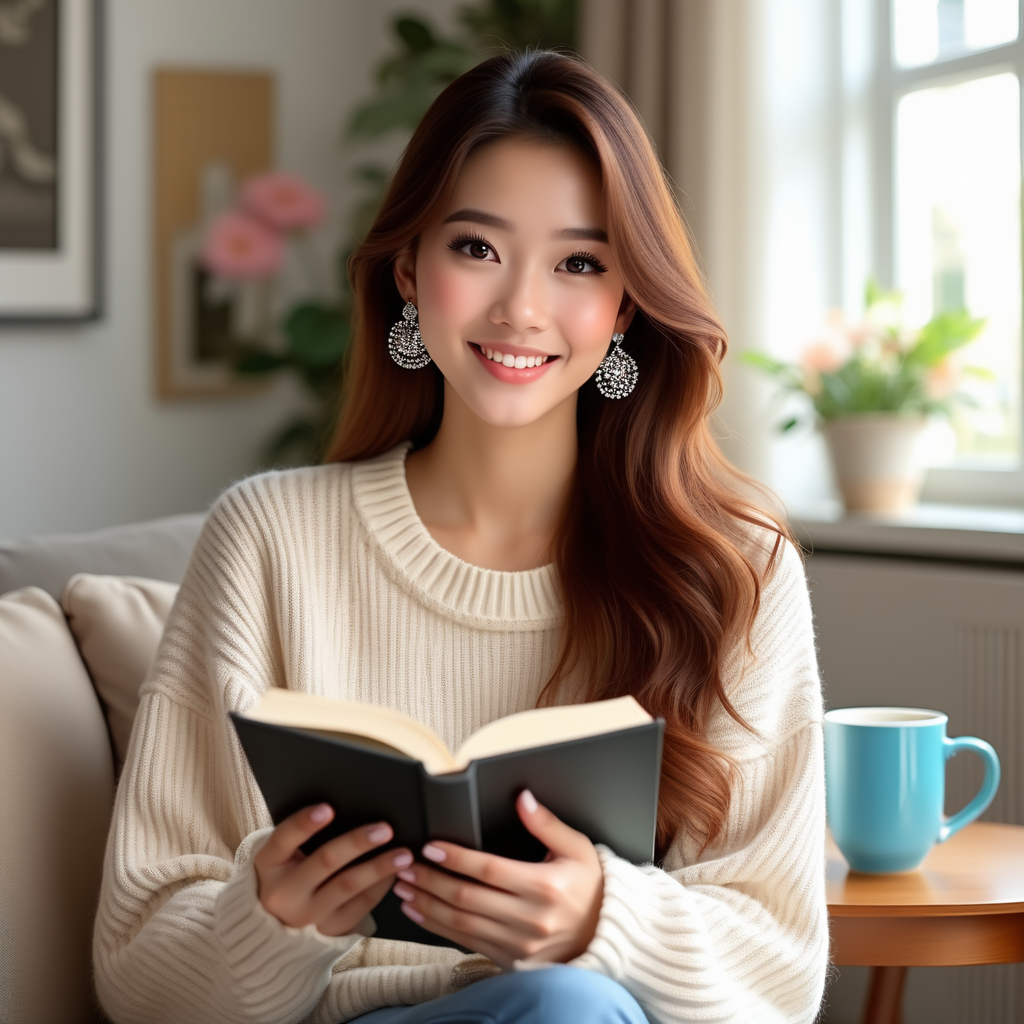
画像の編集
OmniGen はマルチモーダル入力をサポートしています。
入力に画像が含まれる場合、テキストプロンプト内に <img><|image_1|></img> というプレースホルダーを追加して、画像を表す必要があります。
編集後の画像を元の画像と同じサイズに保つには、use_input_image_size_as_output を有効にすることをお勧めします。
import torch
from diffusers import OmniGenPipeline
from diffusers.utils import load_image

pipe = OmniGenPipeline.from_pretrained(
    "Shitao/OmniGen-v1-diffusers",
    dtype=torch.bfloat16
)
pipe.to("cuda")  # or "mps", "xpu", "cpu"

prompt="<img><|image_1|></img> Remove the woman's earrings. Replace the mug with a clear glass filled with sparkling iced cola."
input_images=[load_image("https://raw.githubusercontent.com/VectorSpaceLab/OmniGen/main/imgs/docs_img/t2i_woman_with_book.png")]
image = pipe(
    prompt=prompt,
    input_images=input_images,
    guidance_scale=2,
    img_guidance_scale=1.6,
    use_input_image_size_as_output=True,
    generator=torch.Generator(device="cpu").manual_seed(222)
).images[0]
image.save("output.png") 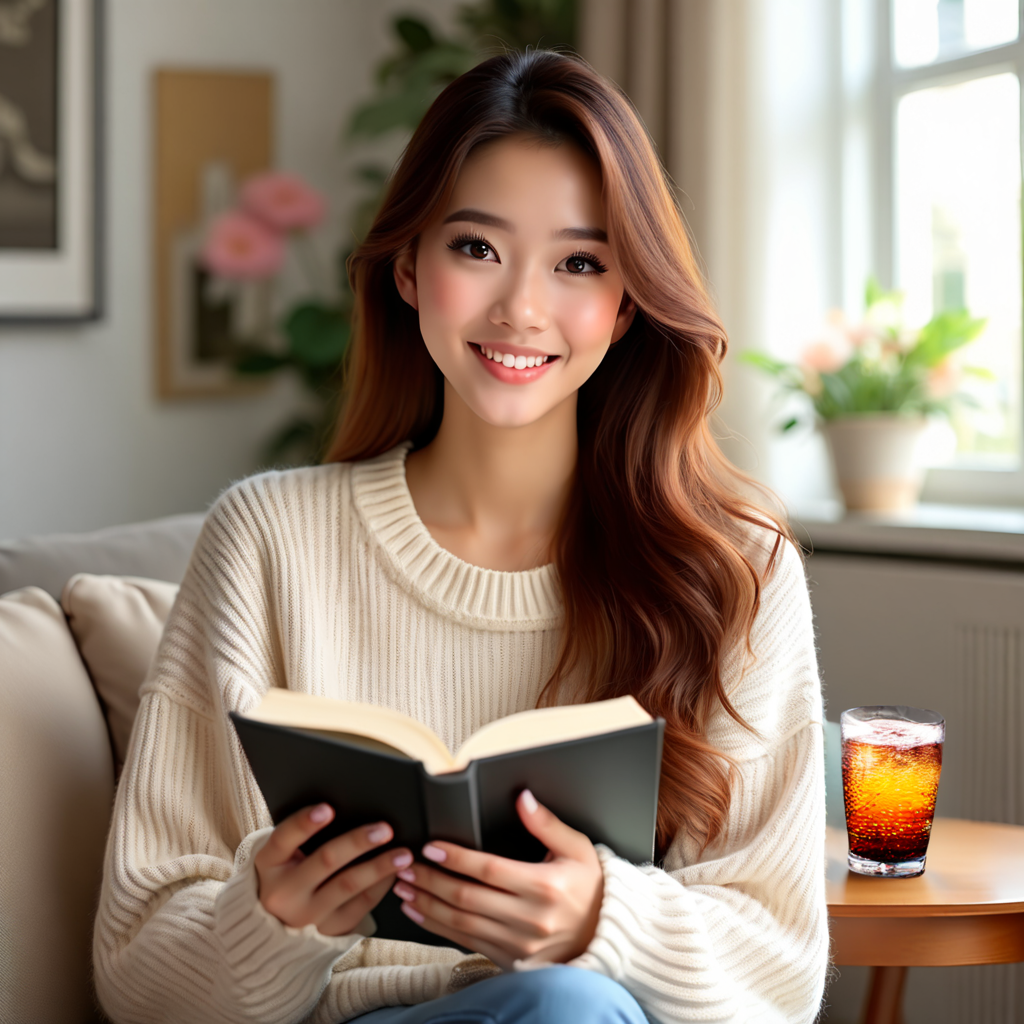
OmniGenには、下の例に示すような視覚的推論など、興味深い機能があります。
prompt="If the woman is thirsty, what should she take? Find it in the image and highlight it in blue. <img><|image_1|></img>"
input_images=[load_image("https://raw.githubusercontent.com/VectorSpaceLab/OmniGen/main/imgs/docs_img/edit.png")]
image = pipe(
    prompt=prompt,
    input_images=input_images,
    guidance_scale=2,
    img_guidance_scale=1.6,
    use_input_image_size_as_output=True,
    generator=torch.Generator(device="cpu").manual_seed(0)
).images[0]
image.save("output.png")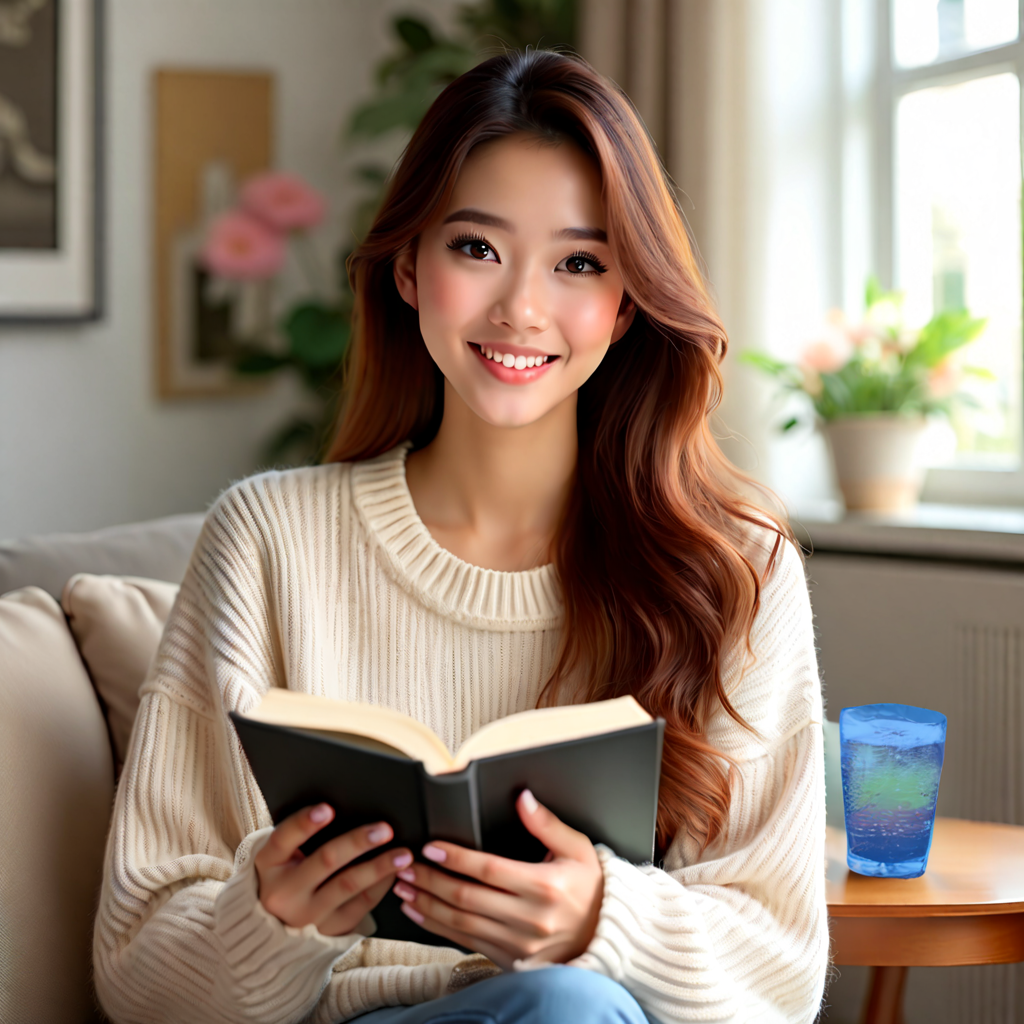
制御可能な生成
OmniGenは、いくつかの古典的なコンピュータビジョンタスクに対応しています。以下に示すように、OmniGenは入力画像内の人間のスケルトンを検出でき、これを制御条件として新しい画像の生成に利用できます。
import torch
from diffusers import OmniGenPipeline
from diffusers.utils import load_image

pipe = OmniGenPipeline.from_pretrained(
    "Shitao/OmniGen-v1-diffusers",
    dtype=torch.bfloat16
)
pipe.to("cuda")  # or "mps", "xpu", "cpu"

prompt="Detect the skeleton of human in this image: <img><|image_1|></img>"
input_images=[load_image("https://raw.githubusercontent.com/VectorSpaceLab/OmniGen/main/imgs/docs_img/edit.png")]
image1 = pipe(
    prompt=prompt,
    input_images=input_images,
    guidance_scale=2,
    img_guidance_scale=1.6,
    use_input_image_size_as_output=True,
    generator=torch.Generator(device="cpu").manual_seed(333)
).images[0]
image1.save("image1.png")

prompt="Generate a new photo using the following picture and text as conditions: <img><|image_1|></img>\n A young boy is sitting on a sofa in the library, holding a book. His hair is neatly combed, and a faint smile plays on his lips, with a few freckles scattered across his cheeks. The library is quiet, with rows of shelves filled with books stretching out behind him."
input_images=[load_image("https://raw.githubusercontent.com/VectorSpaceLab/OmniGen/main/imgs/docs_img/skeletal.png")]
image2 = pipe(
    prompt=prompt,
    input_images=input_images,
    guidance_scale=2,
    img_guidance_scale=1.6,
    use_input_image_size_as_output=True,
    generator=torch.Generator(device="cpu").manual_seed(333)
).images[0]
image2.save("image2.png") 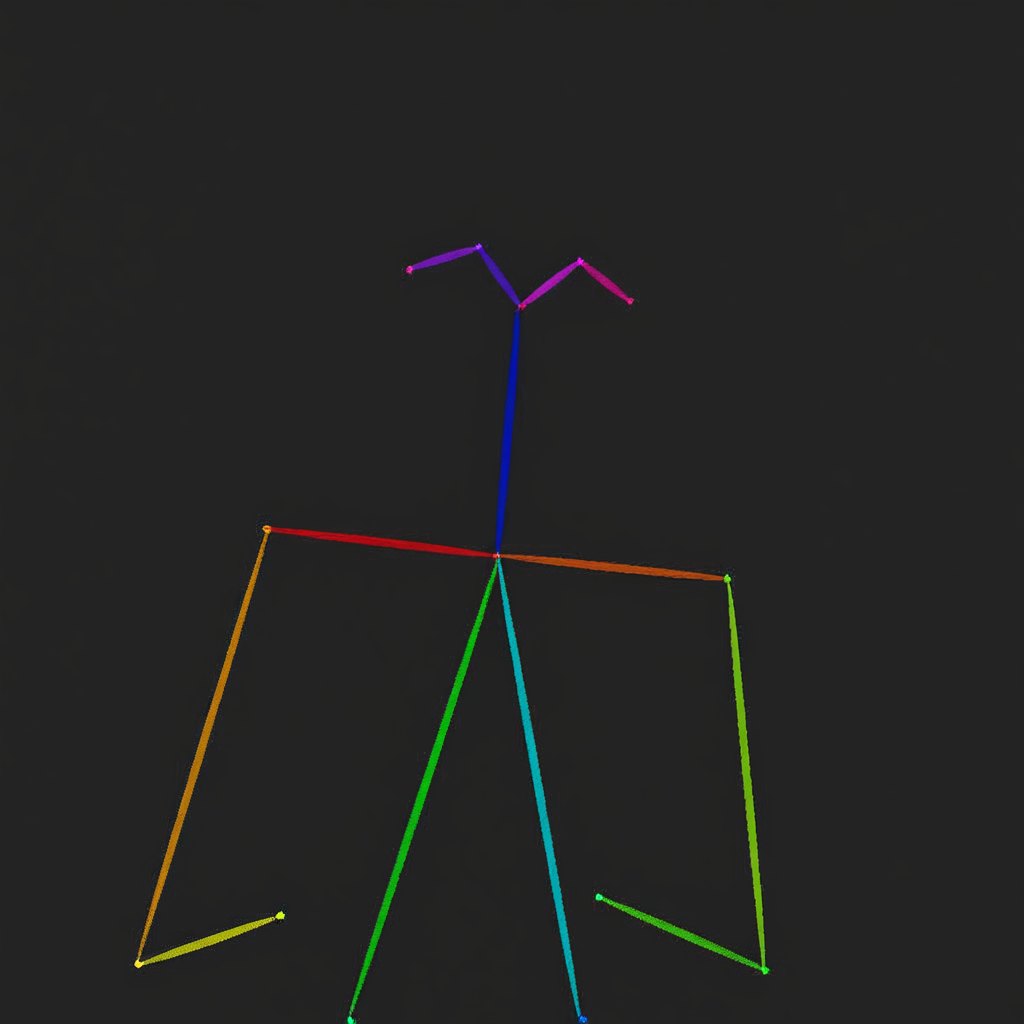
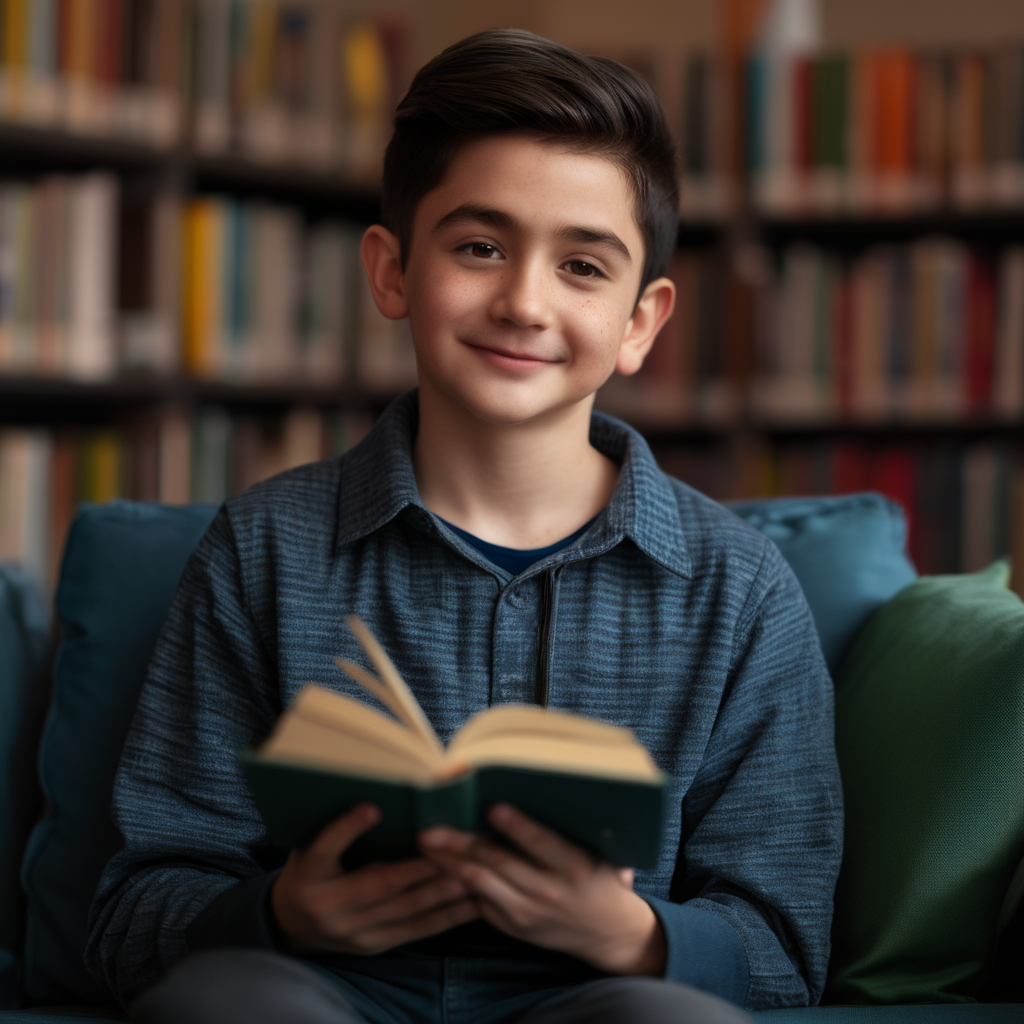
OmniGenは、入力画像から関連する情報を直接使用して、新しい画像を生成することもできます。
import torch
from diffusers import OmniGenPipeline
from diffusers.utils import load_image

pipe = OmniGenPipeline.from_pretrained(
    "Shitao/OmniGen-v1-diffusers",
    dtype=torch.bfloat16
)
pipe.to("cuda")  # or "mps", "xpu", "cpu"

prompt="Following the pose of this image <img><|image_1|></img>, generate a new photo: A young boy is sitting on a sofa in the library, holding a book. His hair is neatly combed, and a faint smile plays on his lips, with a few freckles scattered across his cheeks. The library is quiet, with rows of shelves filled with books stretching out behind him."
input_images=[load_image("https://raw.githubusercontent.com/VectorSpaceLab/OmniGen/main/imgs/docs_img/edit.png")]
image = pipe(
    prompt=prompt,
    input_images=input_images,
    guidance_scale=2,
    img_guidance_scale=1.6,
    use_input_image_size_as_output=True,
    generator=torch.Generator(device="cpu").manual_seed(0)
).images[0]
image.save("output.png")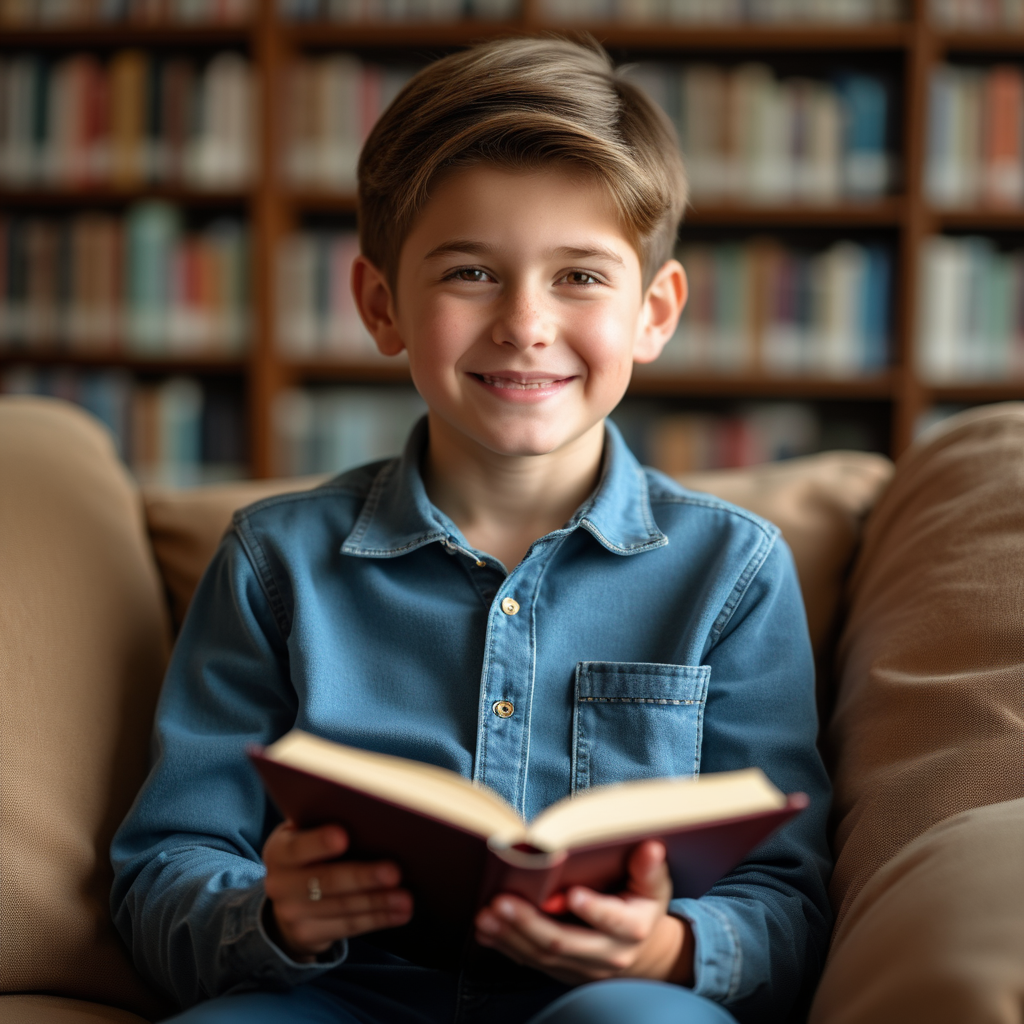
IDとオブジェクトの保持
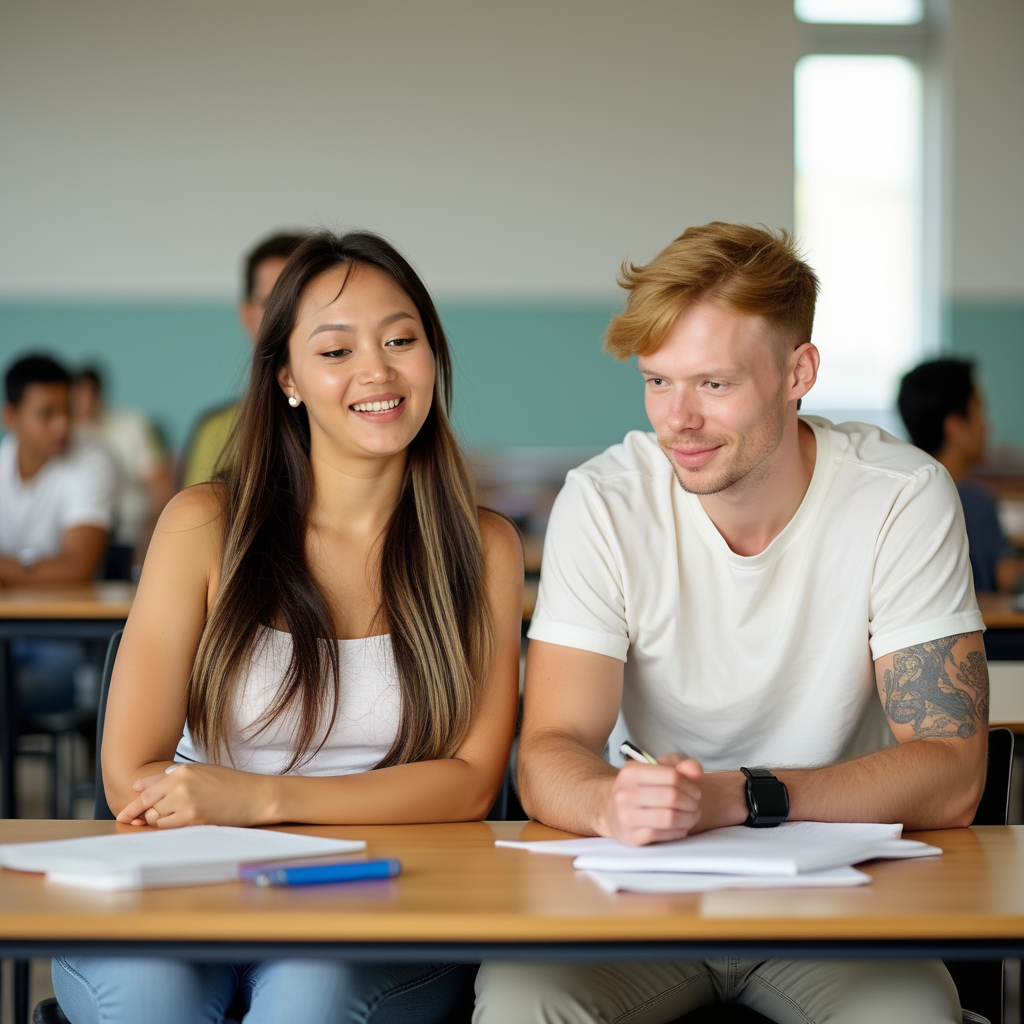
OmniGenは、入力画像内の人物やオブジェクトに基づいて複数の画像を生成でき、同時に複数の画像を入力することもサポートしています。 さらに、OmniGenは、複数のオブジェクトを含む画像から、指示に基づいて望ましいオブジェクトを抽出できます。
import torch
from diffusers import OmniGenPipeline
from diffusers.utils import load_image

pipe = OmniGenPipeline.from_pretrained(
    "Shitao/OmniGen-v1-diffusers",
    dtype=torch.bfloat16
)
pipe.to("cuda")  # or "mps", "xpu", "cpu"

prompt="A man and a woman are sitting at a classroom desk. The man is the man with yellow hair in <img><|image_1|></img>. The woman is the woman on the left of <img><|image_2|></img>"
input_image_1 = load_image("https://raw.githubusercontent.com/VectorSpaceLab/OmniGen/main/imgs/docs_img/3.png")
input_image_2 = load_image("https://raw.githubusercontent.com/VectorSpaceLab/OmniGen/main/imgs/docs_img/4.png")
input_images=[input_image_1, input_image_2]
image = pipe(
    prompt=prompt,
    input_images=input_images,
    height=1024,
    width=1024,
    guidance_scale=2.5,
    img_guidance_scale=1.6,
    generator=torch.Generator(device="cpu").manual_seed(666)
).images[0]
image.save("output.png")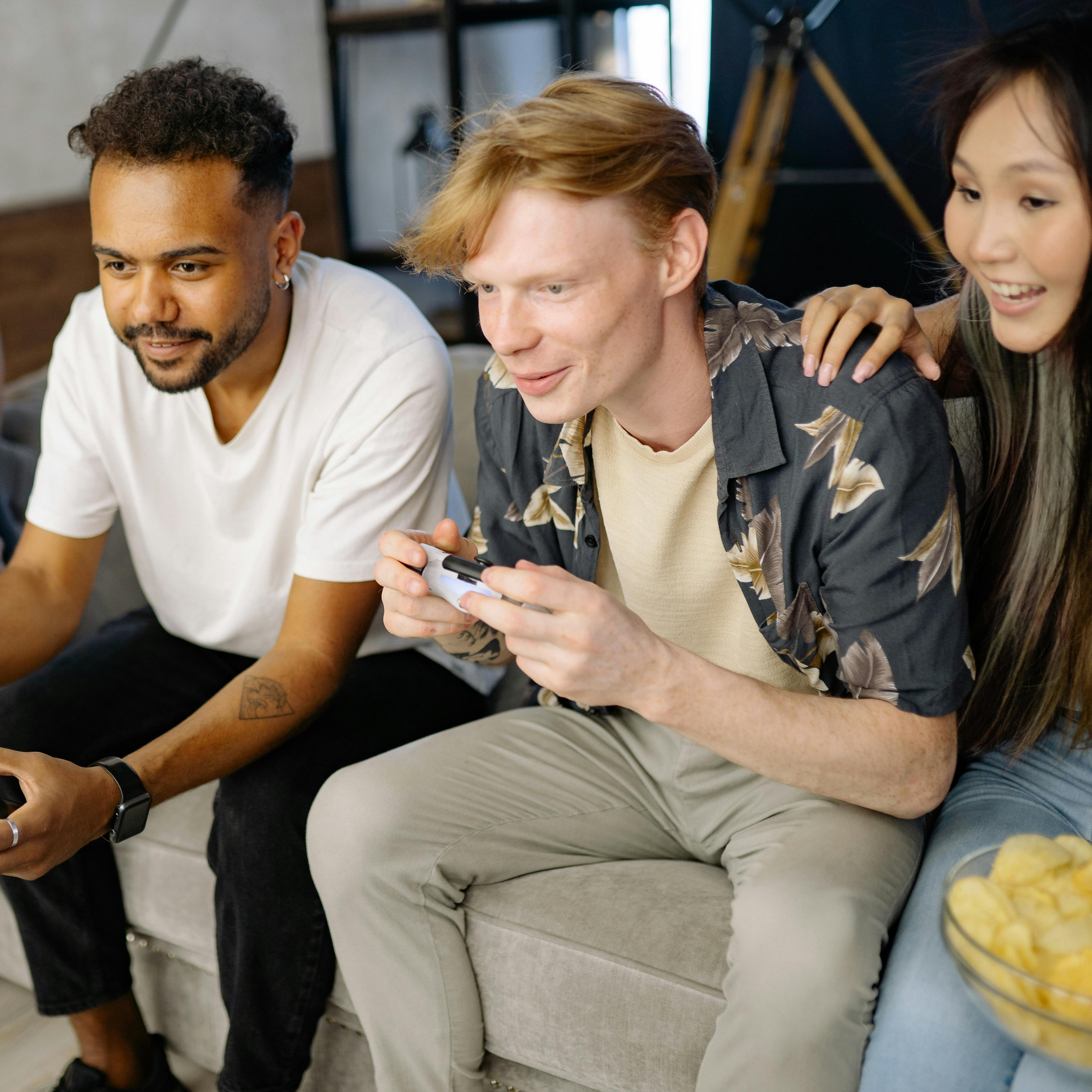
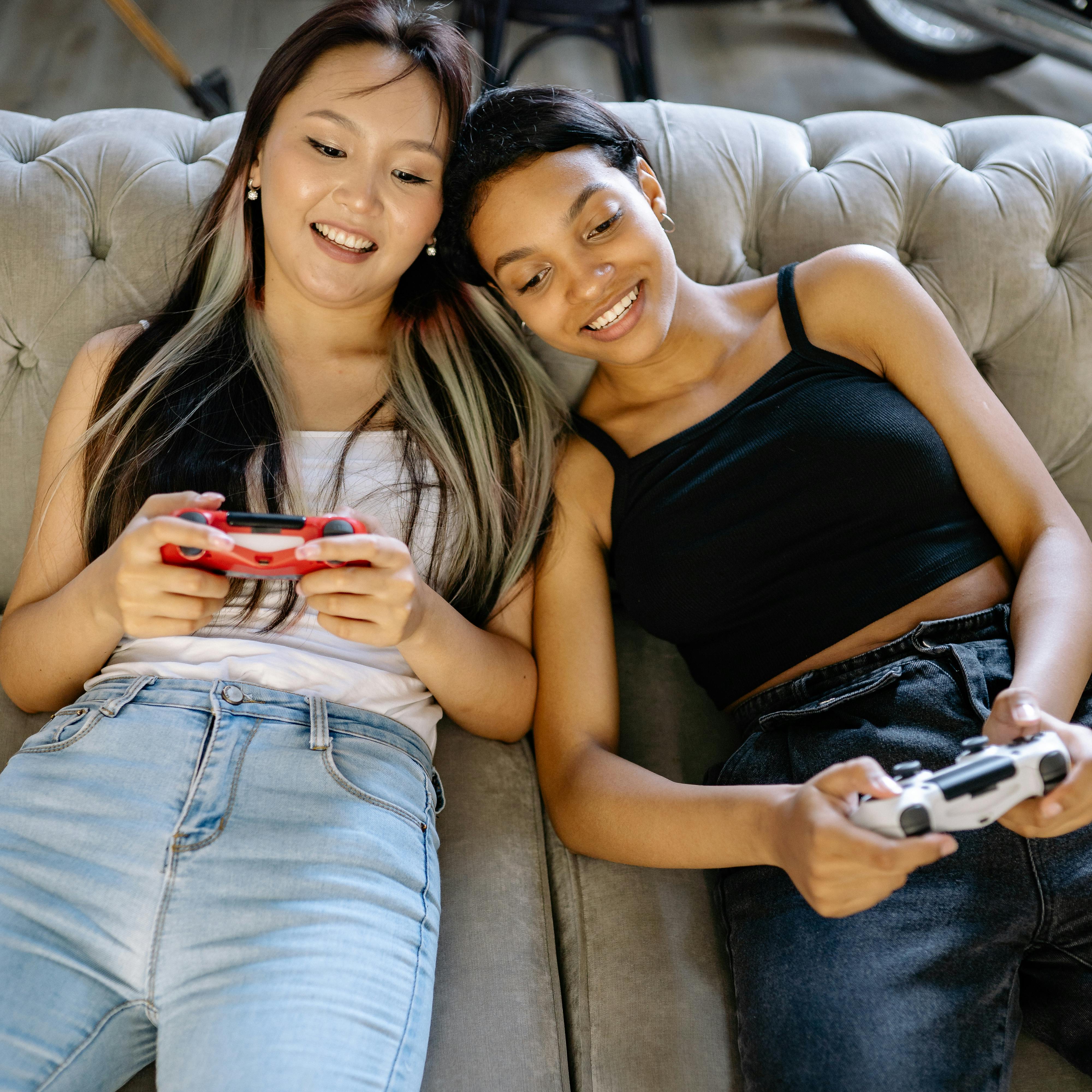
import torch
from diffusers import OmniGenPipeline
from diffusers.utils import load_image

pipe = OmniGenPipeline.from_pretrained(
    "Shitao/OmniGen-v1-diffusers",
    dtype=torch.bfloat16
)
pipe.to("cuda")  # or "mps", "xpu", "cpu"

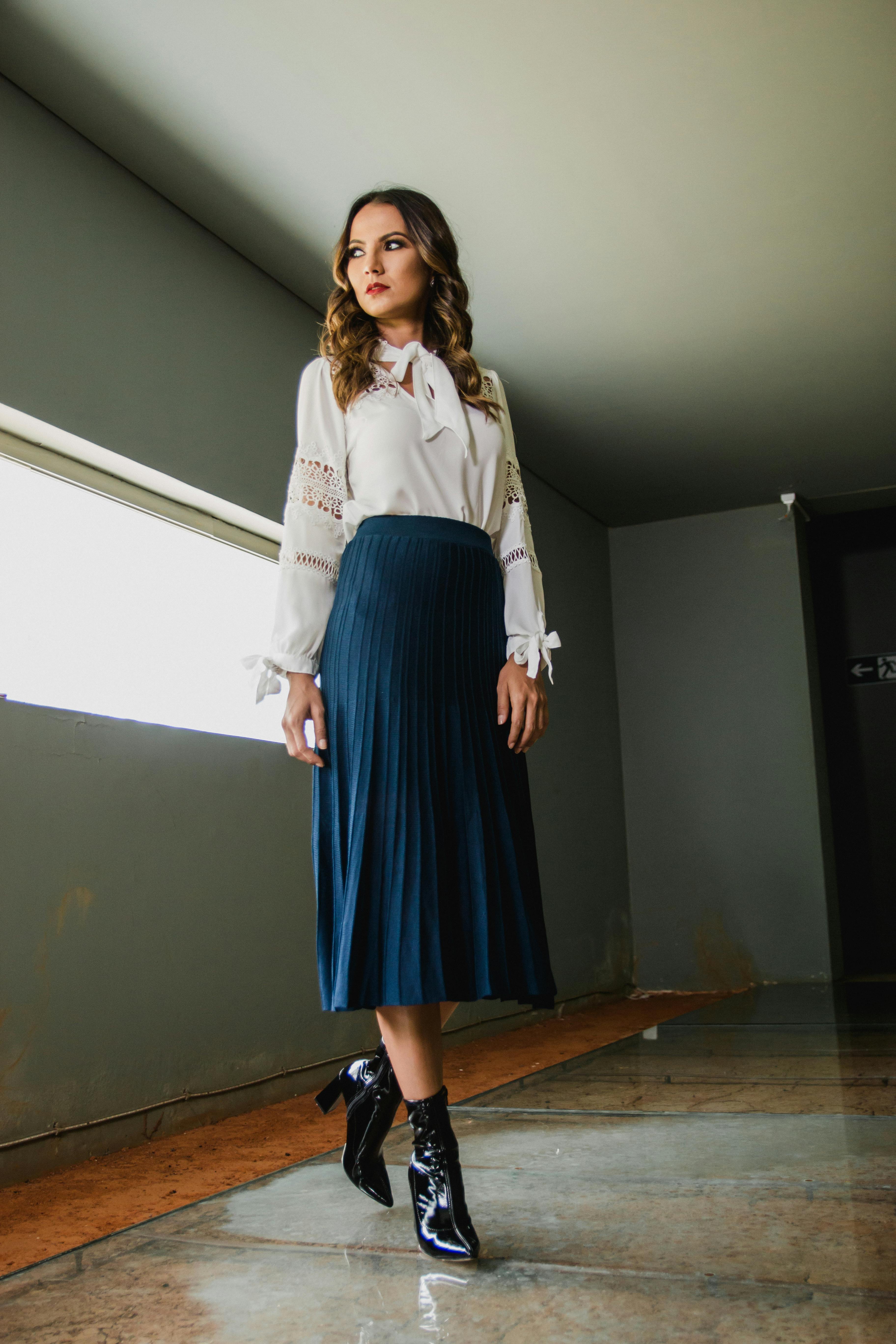
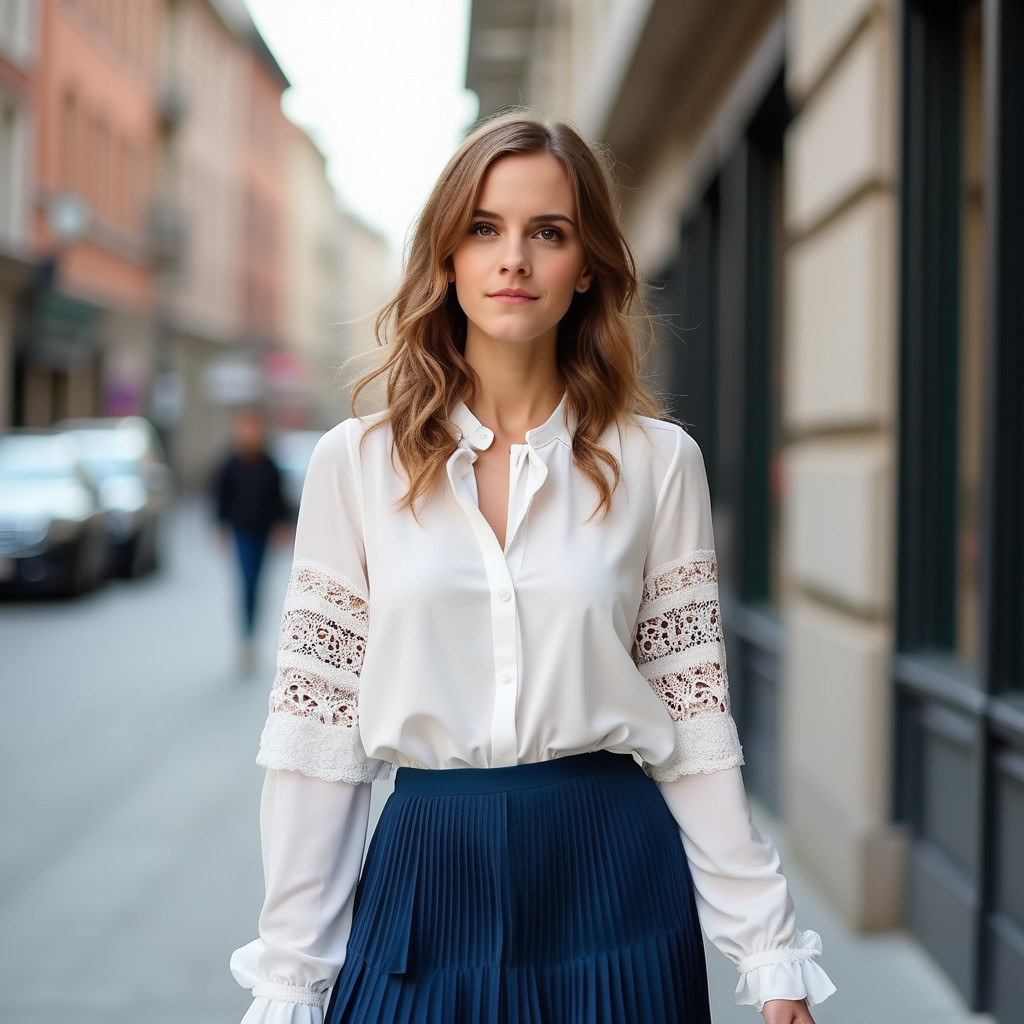
prompt="A woman is walking down the street, wearing a white long-sleeve blouse with lace details on the sleeves, paired with a blue pleated skirt. The woman is <img><|image_1|></img>. The long-sleeve blouse and a pleated skirt are <img><|image_2|></img>."
input_image_1 = load_image("https://raw.githubusercontent.com/VectorSpaceLab/OmniGen/main/imgs/docs_img/emma.jpeg")
input_image_2 = load_image("https://raw.githubusercontent.com/VectorSpaceLab/OmniGen/main/imgs/docs_img/dress.jpg")
input_images=[input_image_1, input_image_2]
image = pipe(
    prompt=prompt,
    input_images=input_images,
    height=1024,
    width=1024,
    guidance_scale=2.5,
    img_guidance_scale=1.6,
    generator=torch.Generator(device="cpu").manual_seed(666)
).images[0]
image.save("output.png")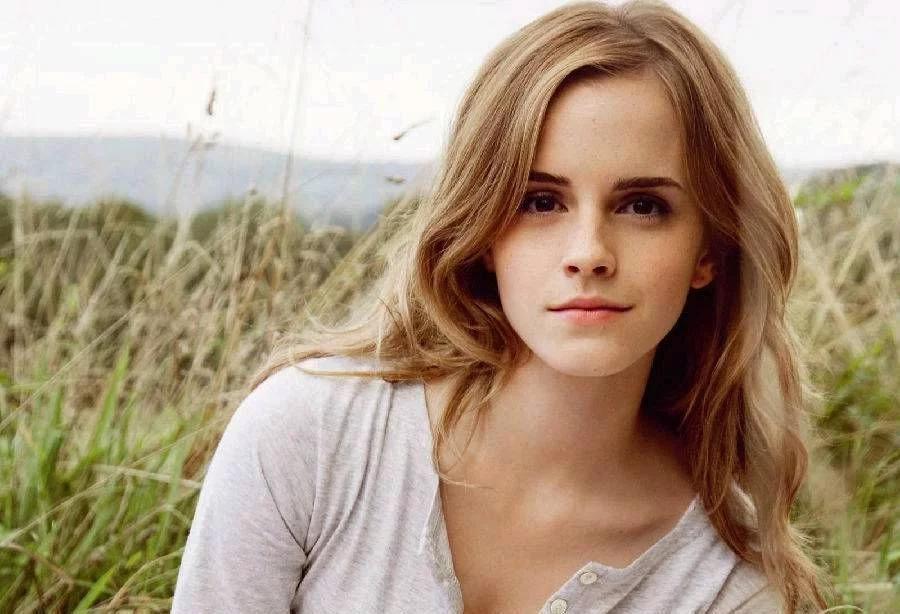
複数画像を使用する場合の最適化
テキストから画像を生成するタスクでは、OmniGenは最小限のメモリと時間コストで動作します(A800 GPU上で1024x1024の画像を生成する場合、メモリ9GB、所要時間31秒)。 ただし、入力画像を使用する場合、計算コストは増加します。
複数の画像を使用する際の計算コストを削減するためのガイドラインを以下に示します。実験は、A800 GPU上で2枚の入力画像を用いて実施されました。
他のパイプラインと同様に、モデルをオフロードすることでメモリ使用量を削減できます: pipe.enable_model_cpu_offload() または pipe.enable_sequential_cpu_offload()。
OmniGenでは、max_input_image_size を減らすことで計算オーバーヘッドを低減することもできます。
異なる画像サイズにおけるメモリ消費量は、以下の表に示されています:
| メソッド | メモリ使用量 |
|---|---|
| max_input_image_size=1024 | 40GB |
| max_input_image_size=512 | 17GB |
| max_input_image_size=256 | 14GB |
OmniGenPipeline
class diffusers.OmniGenPipeline
< source >( transformer: OmniGenTransformer2DModelscheduler: FlowMatchEulerDiscreteSchedulervae: AutoencoderKLtokenizer: LlamaTokenizer )
パラメータ
- transformer (OmniGenTransformer2DModel) — OmniGen用の自己回帰型Transformerアーキテクチャ。
- scheduler (FlowMatchEulerDiscreteScheduler) —
transformerと組み合わせて、エンコードされた画像の潜在変数からノイズを除去するために使用するスケジューラ。 - vae (AutoencoderKL) — 画像を潜在表現にエンコードし、潜在表現からデコードするための変分オートエンコーダ (VAE) モデル。
- tokenizer (
LlamaTokenizer) — LlamaTokenizer クラスのテキストトークナイザ。
マルチモーダルから画像への変換を行うOmniGenパイプライン。
参考文献: https://huggingface.co/papers/2409.11340
__call__
< source >( prompt: str | list[str]input_images: typing.Union[PIL.Image.Image, numpy.ndarray, torch.Tensor, list[PIL.Image.Image], list[numpy.ndarray], list[torch.Tensor], list[typing.Union[PIL.Image.Image, numpy.ndarray, torch.Tensor, list[PIL.Image.Image], list[numpy.ndarray], list[torch.Tensor]]]] = Noneheight: int | None = Nonewidth: int | None = Nonenum_inference_steps: int = 50max_input_image_size: int = 1024timesteps: list[int] = Noneguidance_scale: float = 2.5img_guidance_scale: float = 1.6use_input_image_size_as_output: bool = Falsenum_images_per_prompt: int | None = 1generator: typing.Union[torch.Generator, list[torch.Generator], NoneType] = Nonelatents: typing.Optional[torch.Tensor] = Noneoutput_type: str | None = 'pil'return_dict: bool = Truecallback_on_step_end: typing.Optional[typing.Callable[[int, int], NoneType]] = Nonecallback_on_step_end_tensor_inputs: list[str] = ['latents'] ) → ImagePipelineOutput or tuple
パラメータ
- prompt (
strまたはlist[str]、省略可) — 画像生成をガイドするためのプロンプトです。入力に画像が含まれる場合は、i 番目の画像の位置を示すために、プロンプト内にプレースホルダー<img><|image_i|></img>を追加する必要があります。 - input_images (
PipelineImageInputまたはlist[PipelineImageInput]、任意) — 入力画像のリストです。プロンプト内の”<|image_i|>”を、リスト内の i 番目の画像に置き換えます。 - height (
int、任意、デフォルトは self.unet.config.sample_size * self.vae_scale_factor) — 生成される画像のピクセル単位の縦幅です。最適な結果を得るため、デフォルトでは 1024 に設定されています。 - width (
int、任意、デフォルトは self.unet.config.sample_size * self.vae_scale_factor) — 生成される画像の幅(ピクセル単位)です。最適な結果を得るため、デフォルトでは 1024 に設定されています。 - num_inference_steps (
int、任意、デフォルト値は 50)— デノイジングのステップ数です。デノイジングのステップ数を増やすと、推論速度が遅くなる代わりに、通常はより高品質な画像が得られます。 - max_input_image_size (
int、任意、デフォルト値は 1024) — 入力画像の最大サイズです。入力画像をこの最大サイズにクロップするために使用されます。 - timesteps (
list[int], 任意) —timesteps引数をサポートするスケジューラーのset_timestepsメソッドで、デノイジングプロセスに使用するカスタムタイムステップ。未定義の場合、num_inference_stepsが渡された際のデフォルトの動作が使用されます。降順で指定する必要があります。 - guidance_scale (
float、任意、デフォルト値は 2.5) — Classifier-Free Diffusion Guidanceで定義されているガイダンススケールです。guidance_scaleは、Imagen Paperの式 2 のwとして定義されています。guidance_scale > 1を設定することで、ガイダンススケールが有効になります。ガイダンススケールを高くすると、promptのテキストと密接に関連した画像の生成が促されますが、通常は画像の品質が低下する傾向があります。 - img_guidance_scale (
float、任意、デフォルト値は 1.6) — Instrucpix2pix の式 3 で定義されています。 - use_input_image_size_as_output (bool, デフォルトは False) — 入力画像のサイズを出力画像のサイズとして使用するかどうか。単一画像の入力、例えば画像編集タスクに使用できます。
- num_images_per_prompt (
int、任意、デフォルトは 1) — プロンプトごとに生成する画像の数。 - generator (
torch.Generatorまたはlist[torch.Generator]、省略可) — 生成を決定論的にするためのtorch ジェネレーター1つまたはリスト。 - latents (
torch.Tensor, 任意) — 画像生成の入力として使用する、ガウス分布からサンプリングされた事前生成されたノイズ付き潜在変数。異なるプロンプトで同じ生成を調整するために使用できます。指定されない場合、指定されたランダムgeneratorを使用してサンプリングを行い、潜在変数テンソルが生成されます。 - output_type (
str、任意、デフォルトは"pil") — 画像生成の出力形式です。PIL:PIL.Image.Imageまたはnp.arrayから選択します。 - return_dict (
bool、省略可、デフォルトはTrue) —~pipelines.flux.FluxPipelineOutputを返すか、プレーンなタプルを返すかを指定します。 - callback_on_step_end (
Callable, 省略可) — 推論中の各デノイジングステップの終了時に呼び出される関数です。この関数は、以下の引数とともに呼び出されます:callback_on_step_end(self: DiffusionPipeline, step: int, timestep: int, callback_kwargs: Dict)。callback_kwargsには、callback_on_step_end_tensor_inputsで指定されたすべてのテンソルのリストが含まれます。 - callback_on_step_end_tensor_inputs (
list、任意) —callback_on_step_end関数へのテンソル入力の一覧です。このリストで指定されたテンソルは、callback_kwargs引数として渡されます。パイプラインクラスの._callback_tensor_inputs属性にリストされている変数のみを、このリストに含めることができます。
戻り値
ImagePipelineOutput または tuple
return_dict が True の場合は ImagePipelineOutput、それ以外の場合は tuple を返します。タプルを返す場合、最初の要素は生成された画像のリストです。
生成用のパイプラインを呼び出したときに実行される関数。
例:
>>> import torch
>>> from diffusers import OmniGenPipeline

>>> pipe = OmniGenPipeline.from_pretrained("Shitao/OmniGen-v1-diffusers", torch_dtype=torch.bfloat16)
>>> pipe.to("cuda")

>>> prompt = "A cat holding a sign that says hello world"
>>> # Depending on the variant being used, the pipeline call will slightly vary.
>>> # Refer to the pipeline documentation for more details.
>>> image = pipe(prompt, num_inference_steps=50, guidance_scale=2.5).images[0]
>>> image.save("output.png")
戻り値: ImagePipelineOutput または tuple:
return_dict が True の場合、ImagePipelineOutput が返され、それ以外の場合は tuple が返されます。このとき、最初の要素は生成された画像のリストです。
encode_input_images
< source >( input_pixel_values: list[torch.Tensor]device: typing.Optional[torch.device] = Nonedtype: typing.Optional[torch.dtype] = None )
VAEによって入力画像の継続埋め込みを取得します
Returns: torch.Tensor