
Transformers documentation
من الصورة والنص إلى النص
من الصورة والنص إلى النص
نماذج النص-الصورة إلى النص، المعروفة أيضًا بنماذج اللغة البصرية (VLMs)، هي نماذج لغوية تستقبل مدخلات على شكل صور. يمكن لهذه النماذج التعامل مع مهام متنوعة، بدءًا من الإجابة على الأسئلة البصرية وصولًا إلى تجزئة الصور. تشترك هذه المهمة في العديد من أوجه التشابه مع مهمة الصورة إلى النص، مع وجود بعض حالات الاستخدام المتداخلة مثل وصف الصور. فبينما تستقبل نماذج الصورة إلى النص مدخلات على شكل صور فقط وغالبًا ما تنجز مهمة محددة، تستقبل نماذج VLM مدخلات نصية مفتوحة وصورًا، وهي نماذج أكثر عمومية.
في هذا الدليل، نقدم نظرة عامة موجزة على نماذج اللغة المرئية (VLMs) ونوضح كيفية استخدامها مع Transformers للاستدلال.
لنبدأ أولاً، فهناك أنواع متعددة من نماذج الرؤية واللغة:
- النماذج الأساسية المستخدمة في الضبط الدقيق
- نماذج محادثة مُعدَّلة للتخصيص للمحادثة
- نماذج مُعدّلة بالتدريب الدقيق التعليماتي
يركز هذا الدليل على الاستدلال باستخدام نموذج مُدرَّب على التعليمات.
لنبدأ بتثبيت التبعيات.
pip install -q transformers accelerate
pip install flash-attn --no-build-isolation
لنقم بتهيئة النموذج والمعالج.
from transformers import AutoProcessor, AutoModelForImageTextToText
from accelerate import Accelerator
import torch

device = Accelerator().device
model = AutoModelForImageTextToText.from_pretrained(
    "Qwen/Qwen3-VL-4B-Instruct",
    dtype=torch.bfloat16,
    attn_implementation="flash_attention_2",
).to(device)
تتّخذ نماذج الدّيناميكية الدّقة مثل Qwen3-VL و Qwen3.5 افتراضيًا حدًّا أقصى لـ
longest_edgeيبلغ حوالي 16 ميجابكسل، مما قد يُنتج أكثر من 10,000 رمز بصري لكل صورة، فيُبطئ الاستدلال أو يُسبّب نفاد ذاكرة على وحدات معالجة الرسوميات المخصّصة للمستهلكين. اضبطmin_pixelsوmax_pixelsعند تحميل المعالج للتحكّم في هذا الحدّ.
processor = AutoProcessor.from_pretrained(
    "Qwen/Qwen3-VL-4B-Instruct",
    min_pixels=224 * 224,
    max_pixels=1024 * 1024,
)
يحتوي هذا النموذج على قالب محادثة يساعد المستخدم على تحليل مخرجات المحادثة. علاوة على ذلك، يمكن للنموذج أيضاً قبول عدة صور كمدخلات في محادثة أو رسالة واحدة. سنقوم الآن بإعداد المدخلات.
تبدو مدخلات الصور على النحو التالي.

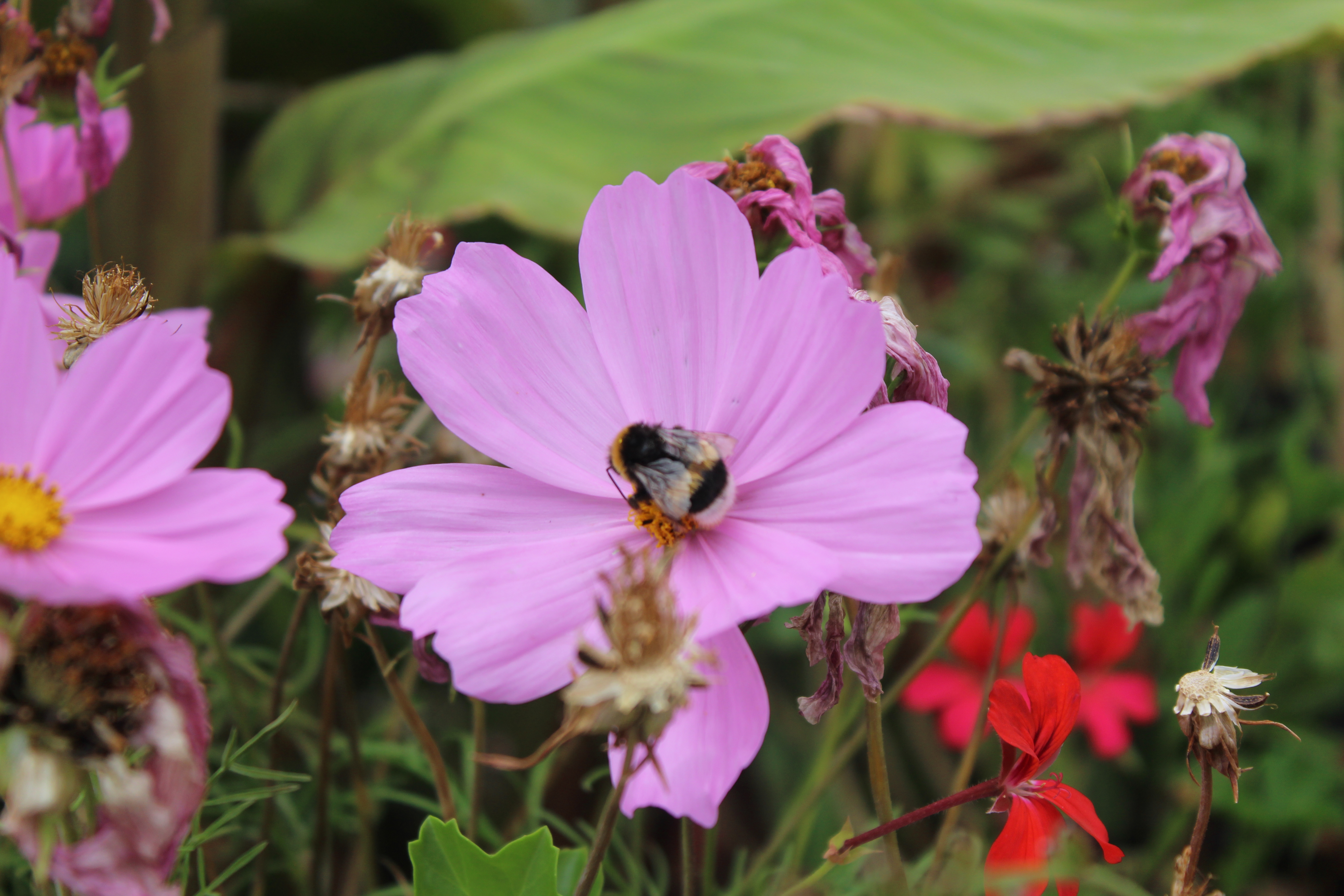
نظّم محادثتك كما هو موضح أدناه لموجه واحد يتضمن مدخلات صورة ونص.
messages = [
    {
        "role": "user",
        "content": [
            {"type": "image", "image": "https://huggingface.co/datasets/huggingface/documentation-images/resolve/main/cats.png"},
            {"type": "text", "text": "What do we see in this image?"},
        ]
    }
]
بدّل بين دور user ودور assistant لتزويد النموذج بسياق مسبق يُمكّنه من توليد استجابات أفضل.
messages = [
    {
        "role": "user",
        "content": [
            {"type": "image", "image": "https://huggingface.co/datasets/huggingface/documentation-images/resolve/main/cats.png"},
            {"type": "text", "text": "What do we see in this image?"},
        ]
    },
    {
        "role": "assistant",
        "content": [
            {"type": "text", "text": "In this image we can see two cats on the nets."},
        ]
    },
    {
        "role": "user",
        "content": [
            {"type": "image", "image": "https://huggingface.co/datasets/huggingface/documentation-images/resolve/main/bee.jpg"},
            {"type": "text", "text": "And how about this image?"},
        ]
    },
]
سنقوم الآن باستدعاء طريقة apply_chat_template() للمعالجات لمعالجة مخرجاتها مسبقاً مع مدخلات الصور.
inputs = processor.apply_chat_template(messages, add_generation_prompt=True, tokenize=True, return_dict=True, return_tensors="pt").to(device)يمكننا الآن تمرير المدخلات المُعالَجة مسبقًا إلى النموذج.
input_len = len(inputs.input_ids[0])

with torch.no_grad():
    generated_ids = model.generate(**inputs, max_new_tokens=200)
generated_texts = processor.batch_decode(generated_ids[:, input_len:], skip_special_tokens=True)

print(generated_texts)
## ['In this image we can see flowers, plants and insect.']
خط أنابيب
أسرع طريقة للبدء هي استخدام واجهة Pipeline. حدد مهمة "image-text-to-text" والنموذج الذي تريد استخدامه.
from transformers import pipeline
pipe = pipeline("image-text-to-text", model="llava-hf/llava-interleave-qwen-0.5b-hf")
يستخدم المثال أدناه قوالب المحادثة لتنسيق مدخلات النص.
messages = [
     {
         "role": "user",
         "content": [
             {
                 "type": "image",
                 "image": "https://huggingface.co/datasets/huggingface/documentation-images/resolve/main/bee.jpg",
             },
             {"type": "text", "text": "Describe this image."},
         ],
     },
     {
         "role": "assistant",
         "content": [
             {"type": "text", "text": "There's a pink flower"},
         ],
     },
 ]
مرّر النص والصورة المُنسّقين بواسطة قالب المحادثة إلى Pipeline، و اضبط return_full_text=False لإزالة المدخلات من المخرجات المُولَّدة.
outputs = pipe(text=messages, max_new_tokens=20, return_full_text=False)
outputs[0]["generated_text"]
#  with a yellow center in the foreground. The flower is surrounded by red and white flowers with green stems
إذا كنت تفضّل ذلك، يمكنك أيضًا تحميل الصور بشكل منفصل ثم تمريرها إلى خط المعالجة على النحو التالي:
import requests
from PIL import Image
from transformers import pipeline

pipe = pipeline("image-text-to-text", model="HuggingFaceTB/SmolVLM-256M-Instruct")

img_urls = [
    "https://huggingface.co/datasets/huggingface/documentation-images/resolve/main/cats.png",
    "https://huggingface.co/datasets/huggingface/documentation-images/resolve/main/bee.jpg",
]
images = [
    Image.open(requests.get(img_urls[0], stream=True).raw),
    Image.open(requests.get(img_urls[1], stream=True).raw),
]

messages = [
    {
        "role": "user",
        "content": [
            {"type": "image"},
            {"type": "image"},
            {"type": "text", "text": "What do you see in these images?"},
        ],
    }
]
outputs = pipe(text=messages, images=images, max_new_tokens=50, return_full_text=False)
outputs[0]["generated_text"]
" In the first image, there are two cats sitting on a plant. In the second image, there are flowers with a pinkish hue."
ستظل الصور مُضمّنة في حقل "input_text" من المخرجات:
outputs[0]['input_text']
"""
[{'role': 'user',
  'content': [{'type': 'image',
    'image': <PIL.PngImagePlugin.PngImageFile image mode=RGBA size=622x412>},
   {'type': 'image',
    'image': <PIL.JpegImagePlugin.JpegImageFile image mode=RGB size=5184x3456>},
   {'type': 'text', 'text': 'What do you see in these images?'}]}]
"""
البث
يمكننا استخدام بث النص لتحسين تجربة التوليد. يدعم Transformers البث من خلال فئتي TextStreamer أو TextIteratorStreamer. سنستخدم TextIteratorStreamer مع IDEFICS-8B.
افترض أن لدينا تطبيقًا يحفظ سجل المحادثة ويستقبل مدخلات المستخدم الجديدة. سنقوم بمعالجة المدخلات مسبقًا كما هو معتاد، ثم تهيئة TextIteratorStreamer للتعامل مع التوليد في خيط منفصل. وهذا يتيح لك بث رموز النص المولّد في الوقت الفعلي. يمكن تمرير أي من معاملات التوليد إلى TextIteratorStreamer.
import time
from transformers import TextIteratorStreamer
from threading import Thread

def model_inference(
    user_prompt,
    chat_history,
    max_new_tokens,
    images
):
    user_prompt = {
        "role": "user",
        "content": [
            {"type": "image"},
            {"type": "text", "text": user_prompt},
        ]
    }
    chat_history.append(user_prompt)
    streamer = TextIteratorStreamer(
        processor.tokenizer,
        skip_prompt=True,
        timeout=5.0,
    )

    generation_args = {
        "max_new_tokens": max_new_tokens,
        "streamer": streamer,
        "do_sample": False
    }

    # add_generation_prompt=True makes model generate bot response
    prompt = processor.apply_chat_template(chat_history, add_generation_prompt=True)
    inputs = processor(
        text=prompt,
        images=images,
        return_tensors="pt",
    ).to(device)
    generation_args.update(inputs)

    thread = Thread(
        target=model.generate,
        kwargs=generation_args,
    )
    thread.start()

    acc_text = ""
    for text_token in streamer:
        time.sleep(0.04)
        acc_text += text_token
        if acc_text.endswith("<end_of_utterance>"):
            acc_text = acc_text[:-18]
        yield acc_text

    thread.join()
الآن دعونا نستدعي دالة model_inference التي أنشأناها ونجري تدفق القيم.
generator = model_inference(
    user_prompt="And what is in this image?",
    chat_history=messages[:2],
    max_new_tokens=100,
    images=images
)

for value in generator:
  print(value)

# In
# In this
# In this image ...
تدريب النماذج على أجهزة أصغر
غالبًا ما تكون نماذج VLMs كبيرة الحجم وتتطلب تحسينًا لتناسب أجهزة أصغر. يدعم Transformers العديد من مكتبات تكميم النماذج، وهنا سنوضح فقط تكميم int8 باستخدام Quanto. يوفر تكميم int8 تحسينات في الذاكرة تصل إلى 75 في المئة (إذا تم تكميم جميع الأوزان). ومع ذلك، هذا ليس حلًا مجانيًا، فبما أن دقة 8-بت ليست دقة أصلية في CUDA، يتم تكميم الأوزان وإلغاء تكميمها على الطاير، مما يضيف إلى زمن الاستجابة.
أولاً، ثبّت التبعيات.
pip install -U optimum-quanto bitsandbytes
للتكميم أثناء تحميل النموذج، نحتاج أولاً إلى إنشاء QuantoConfig. ثم حمّل النموذج بالطريقة المعتادة، مع تمرير quantization_config أثناء تهيئة النموذج.
from transformers import AutoModelForImageTextToText, QuantoConfig

model_id = "Qwen/Qwen3-VL-4B-Instruct"
quantization_config = QuantoConfig(weights="int8")
quantized_model = AutoModelForImageTextToText.from_pretrained(
    model_id, device_map="auto", quantization_config=quantization_config
)

messages = [
    {
        "role": "user",
        "content": [
            {"type": "image", "image": "https://huggingface.co/datasets/huggingface/documentation-images/resolve/main/cats.png"},
            {"type": "text", "text": "What do we see in this image?"},
        ]
    },
]
inputs = processor.apply_chat_template(messages, add_generation_prompt=True, tokenize=True, return_dict=True, return_tensors="pt").to(quantized_model.device)
input_len = len(inputs.input_ids[0])

with torch.no_grad():
    generated_ids = quantized_model.generate(**inputs, cache_implementation="static", max_new_tokens=100)
generated_texts = processor.batch_decode(generated_ids[:, input_len:], skip_special_tokens=True)

print(generated_texts[0])
## ['In this image, we see two tabby cats resting on a large, tangled pile of fishing nets. The nets are a mix of brown, orange, and red colors, with some blue and green ropes visible in the background. The cats appear relaxed and comfortable, nestled into the fibers of the nets. One cat is in the foreground, looking slightly to the side, while the other is positioned further back, looking directly at the camera. The scene suggests a coastal or fishing-related setting, possibly near']
وهذا كل شيء، يمكننا استخدام النموذج بالطريقة نفسها دون أي تغييرات.
الدردشة التكرارية مع التخزين المؤقت
إذا كنت تبني وكلاء محادثة متعددي الوسائط، فمن المرجح أنك تنقل نفس الصور أو المقاطع الصوتية عبر الجولات. يتيح لك التخزين المؤقت إعادة استخدام التمثيلات المشفّرة لها بدلاً من إعادة معالجتها في كل مرة، مما يقلل من الحسابات المكررة.
على غرار النماذج النصية فقط، تتتبع النماذج متعددة الوسائط سجل المحادثة باستخدام قالب المحادثة. الفارق الجوهري هو أنه يطبّق قالب المحادثة بصيغة "text" فقط، ويعالج المحتوى متعدد الوسائط الجديد بشكل منفصل. إذا قمت بتطبيق القالب مع المعالجة، فسيتم إعادة معالجة المحادثة بأكملها في كل جولة، لأن Jinja لا يستطيع التمييز بين المدخلات المشفّرة سابقاً والمدخلات الجديدة.
يُوضّح المثال أدناه هذا النمط. بالنسبة للنماذج النصية فقط، راجع دليل التوليد التكراري.
إليك مثالًا بسيطًا بلغة بايثون يوضح هذا النمط. وللاطلاع على مثال باستخدام نماذج نصية فقط، راجع هذا الدليل.
import torch
from transformers import AutoProcessor, Gemma4ForConditionalGeneration, TextStreamer
from transformers.cache_utils import DynamicCache
from transformers.image_utils import load_image
from transformers.audio_utils import load_audio

model_id = 'google/gemma-4-E2B-it'
processor = AutoProcessor.from_pretrained(model_id)
model = Gemma4ForConditionalGeneration.from_pretrained(model_id, dtype=torch.float32, device_map='cpu')

past_key_values = DynamicCache()
streamer = TextStreamer(processor.tokenizer, skip_prompt=True, skip_special_tokens=True)

## Turn 1: multimodal input (text + image + audio)
audio = load_audio("https://huggingface.co/datasets/Xenova/transformers.js-docs/resolve/main/jfk.wav")
image = load_image("https://huggingface.co/datasets/huggingface/documentation-images/resolve/main/bee.jpg")
messages = [
    {
        "role": "user",
        "content": [
            {"type": "text", "text": "In detail, describe the following audio and image."},
            {"type": "audio"},
            {"type": "image"},
        ],
    },
]
input_string = processor.apply_chat_template(messages, add_generation_prompt=True, tokenize=False)
inputs = processor(text=input_string, images=[image], audio=[audio], return_tensors='pt')
output = model.generate(**inputs, past_key_values=past_key_values, max_new_tokens=1024, do_sample=False, streamer=streamer)
first_response = processor.decode(output[0][inputs['input_ids'].shape[1]:], skip_special_tokens=True)

## Turn 2: text-only follow-up (reuses KV cache, no new media)
messages.append({"role": "assistant", "content": [{"type": "text", "text": first_response}]})
cached_string = processor.apply_chat_template(messages, tokenize=False)
messages.append({"role": "user", "content": [{"type": "text", "text": "Summarize the previous descriptions in one sentence."}]})
full_string = processor.apply_chat_template(messages, add_generation_prompt=True, tokenize=False)
new_string = full_string[len(cached_string):]

new_input_ids = processor.tokenizer(new_string, add_special_tokens=False, return_tensors='pt')['input_ids']
# Build and pass an attention mask only if batched input or there is padding
# attention_mask = torch.ones(1, past_key_values.get_seq_length() + new_input_ids.shape[1], dtype=torch.long)

output2 = model.generate(input_ids=new_input_ids, past_key_values=past_key_values, max_new_tokens=1024, do_sample=False, streamer=streamer)
second_response = processor.decode(output2[0][new_input_ids.shape[1]:], skip_special_tokens=True)

## Turn 3: new image (must go through processor for image token expansion + encoding)
image2 = load_image("https://huggingface.co/datasets/Xenova/transformers.js-docs/resolve/main/artemis.jpeg")
messages.append({"role": "assistant", "content": [{"type": "text", "text": second_response}]})
cached_string2 = processor.apply_chat_template(messages, tokenize=False)
messages.append({"role": "user", "content": [{"type": "text", "text": "Describe this image."}, {"type": "image"}]})
full_string2 = processor.apply_chat_template(messages, add_generation_prompt=True, tokenize=False)
new_string2 = full_string2[len(cached_string2):]

new_inputs2 = processor(text=new_string2, images=[image2], add_special_tokens=False, return_tensors='pt')
# new_inputs2['attention_mask'] = torch.ones(1, past_key_values.get_seq_length() + new_inputs2['input_ids'].shape[1], dtype=torch.long)
new_inputs2['past_key_values'] = past_key_values

output3 = model.generate(**new_inputs2, max_new_tokens=1024, do_sample=False, streamer=streamer)
قراءات إضافية
إليك بعض الموارد الإضافية الخاصة بمهمة النص والصورة إلى النص.
- يتناول صفحة مهمة النص والصورة إلى النص أنواع النماذج، وحالات الاستخدام، ومجموعات البيانات، والمزيد.
- شرح نماذج اللغة والرؤية هو منشور على المدونة يتناول كل ما يتعلق بنماذج اللغة والرؤية والتدريب الدقيق الإشرافي باستخدام TRL.
- تعلّم كيفية ضبط نماذج اللغة البصرية باستخدام TRL